An online memorial should do more than publish a name and a photo. The best memorial pages help family and friends understand a life, find service information, share memories, add photos, and return later when they want to remember.
CreateMemorial is built around that full experience: a public or private tribute page, obituary and life story sections, gallery photos, stories, guest tributes, invitations, notification preferences, and upgrade options when a family needs more media space. This guide walks through how to create a memorial that is complete, clear, and easy for visitors to use.
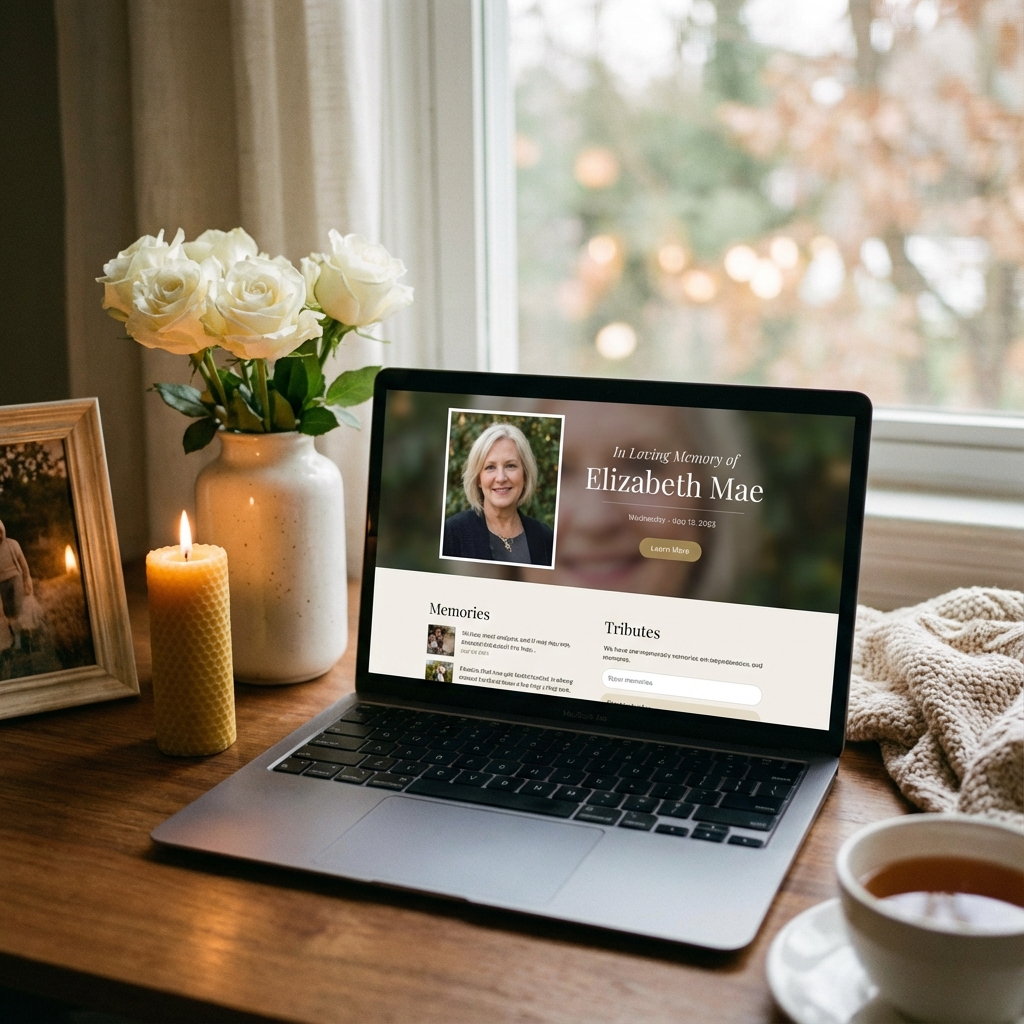
Before you start: gather the essentials
You do not need every detail before creating the page. Start with the information that helps visitors know they are in the right place, then add depth over time.
| What to prepare | Why it matters | Can you add it later? |
|---|---|---|
| Full name and dates | Identifies the memorial clearly in search and shares | Yes |
| Profile photo | Makes the memorial feel personal immediately | Yes |
| Obituary or life story | Gives visitors context and something meaningful to read | Yes |
| Gallery photos | Helps family remember different moments and stages of life | Yes |
| Privacy choice | Controls who can view and contribute | Yes |
Step 1: Create the memorial page
Start from Create a Memorial. Enter the person's name, dates, and basic details. If you are not ready to write everything, publish a simple version first and return later to improve it. A memorial page is not a one-time document; it can grow as family members share more.
Step 2: Choose the right privacy setting
Privacy is one of the most important decisions. A public memorial is easiest to share and can help extended friends find the page. A private or password-protected memorial is better when the family wants a smaller circle or when details should not be broadly visible.
- Use public when you want a shareable memorial link for many visitors.
- Use private when the memorial is mainly for invited family and friends.
- Use a password when the page can be shared, but only trusted people should enter.
- Review guest permissions if you want anonymous visitors to leave tributes, stories, or photos.
Step 3: Write the obituary and life story
A good memorial story is warm and specific. It does not need to list every fact. Focus on the shape of the person's life: where they came from, who they loved, what they cared about, what people will remember, and the small details that made them recognizable.
A simple structure
- Opening: full name, dates, and a short sentence about who they were.
- Family: close relatives, chosen family, and important relationships.
- Life: work, service, education, places lived, hobbies, faith, or community.
- Personality: stories, favorite sayings, habits, humor, generosity, or passions.
- Closing: service details, donation preference, or a final remembrance.
Step 4: Add photos without overwhelming the page
Choose a clear profile photo first. Then add a small gallery that shows different parts of life: childhood, family, travel, celebrations, everyday moments, and favorite places. If many relatives want to contribute, use the gallery and stories features instead of trying to upload everything at once.
Free memorials include a small gallery limit. Premium or Lifetime memorials unlock more gallery space for families who want to preserve a larger photo collection.
Step 5: Make it easy for visitors to leave a tribute
Visitors who want to write a note should not create a new memorial. They should open the existing memorial and choose Leave a Tribute. On CreateMemorial, the memorial navigation includes a direct Leave a Tribute link so guests can jump to the right place.
If a visitor is asked to log in, it means anonymous submissions are not enabled for that memorial. The memorial owner can adjust guest permissions, or the visitor can create an account and return to the same page.
Step 6: Use stories for longer memories
A tribute is usually a short note. A story can be longer and may include several photos. Use Stories for memories that need more space: a trip, a friendship, a family moment, a workplace memory, or a reflection that others may want to read later.
Step 7: Invite the right people
After the memorial looks correct, share it with close family first. Ask them to review names, dates, and sensitive details. Then invite friends, colleagues, neighbors, and community members. The invitation tools help people reach the correct memorial page instead of creating a duplicate.
Step 8: Review notifications and moderation
Memorial pages can receive tributes, stories, and photos over time. Review notification settings so the owner knows when new content arrives. If the memorial allows anonymous contributions, moderation and rate limits help reduce spam while still making it easy for genuine visitors to share.
Common mistakes to avoid
- Creating a new memorial when you meant to leave a tribute on an existing memorial.
- Publishing before checking spelling, dates, and the custom URL.
- Uploading too many similar photos instead of choosing the clearest ones first.
- Leaving privacy settings unclear for family members.
- Forgetting to invite people who may have meaningful stories or photos.
Final checklist
- Name, dates, and profile photo added
- Obituary or life story drafted
- Privacy and guest permissions reviewed
- Gallery started with meaningful photos
- Leave a Tribute and Stories are easy for visitors to find
- Family has reviewed sensitive details
- Memorial link shared with the right people